Adding The Latymer School to your LinkedIn profile only takes a few moments – it not only shows your belonging to the school, it also enables you to stay updated on the current activities of the school, hear about upcoming alumni events, connect with some of your former school friends or answer calls for action (e.g. taking part in the Careers Fair).
Here is a step by step guide on how to add The Latymer School to your profile to ensure that all of this can take place and help the Latymer community stay linked together:
- Open your LinkedIn account and click Me > View Profile in the top right hand corner.
- Once on your profile, scroll down to the Education section.
- Click the + button in the top right hand corner of the Education section to add your education.
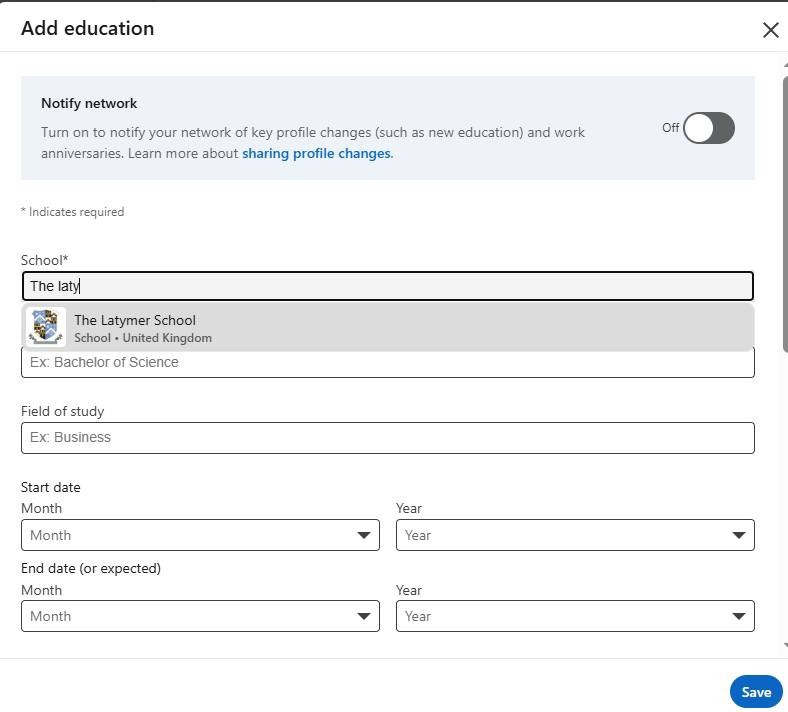
- Once in the 'Add education' window, click on School, and type in The Latymer School until the Latymer logo appears (as seen below), and then click on that dropdown button. This will ensure you are officially part of the Latymer School community on LinkedIn.
- Enter your Month and Year in the Start date and End date section to allow you to connect with some of your former classmates.
- There are some optional fields:
- Degree: list A Levels, GCSEs, O Levels or whatever is applicable to your time at Latymer.
- Field of study: input the subjects you studied at your relevant qualification levels.
- Activities and societies: feel free to add any sports teams or clubs, musical achievements, awards etc. from your time at Latymer.
- Click Save.
If you see the Latymer logo next to your entry on your profile, it means that you're now officially displaying your Latymerian legacy on LinkedIn!
This article is © The Latymer School and permission must be sought to use any of its content.
|